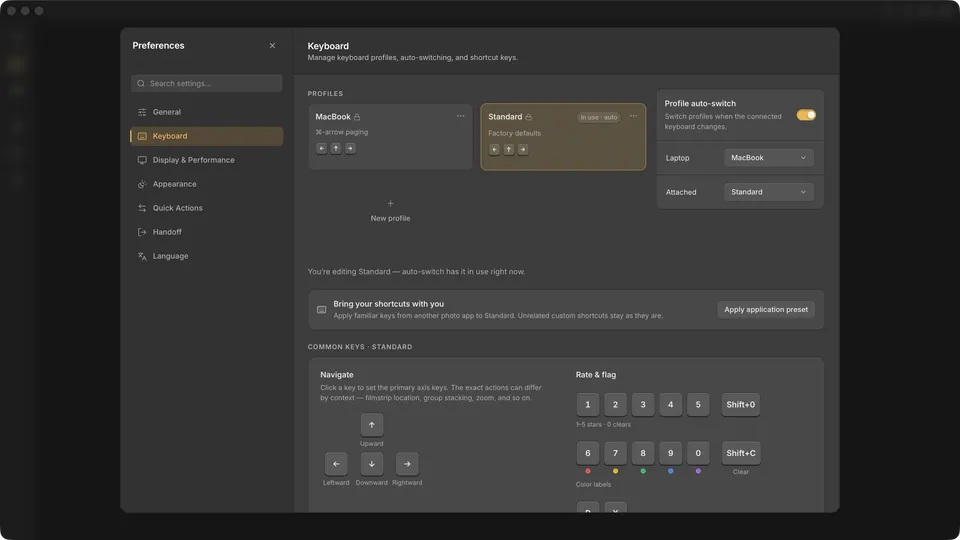
The first list below documents Cullibrate's default profile. If you chose an application preset during first launch or from Keyboard preferences, use that preset's overlay instead. Actions that a preset does not list keep the profile's existing assignment.
Cullibrate defaults
- ← / → / ↑ / ↓ — move through Grid; in Filmstrip, use the horizontal or vertical pair that follows the strip
- Home / End — first / last photo
- Compare: ← / → with a bottom filmstrip, or ↑ / ↓ with a side filmstrip — previous / next Candidate
- Compare: ↓ with a bottom filmstrip, or → with a side filmstrip — swap and advance
- Compare: ↑ with a bottom filmstrip, or ← with a side filmstrip — swap without advancing
- G / C / L — Grid / Compare / Filmstrip (Loupe)
- N — toggle Survey
- ShiftN — turn Auto-survey on or off
- D — remove the highlighted photo from Survey
- Cmd/ on Mac / Ctrl/ on Windows — enter or leave Face Survey
- / / Shift/ — Faces panel / full size
- Option/ on Mac / Alt/ on Windows — float or dock the Faces panel in Grid
- Space — switch the main preview between Fit and detail zoom
- + / - — zoom the main preview in / out
- ← / → — previous / next face while zoomed
- R — open Crop & level
- J / ShiftJ / CmdShiftJ on Mac / CtrlShiftJ on Windows — Preview Edits / the RAW render / both at once, in the main preview
- Z / F — Zen mode / native full screen
- U / S — show or hide Grouping / expand or collapse the active Grid stack
- 1–5 / Shift0 — set or clear a star rating
- 6–9 / 0 / ShiftC — red, yellow, green, blue, purple, or no colour
- P / X / ShiftU — tag / reject / clear tag or reject
Application preset overlays
Applying a preset changes the assignments listed for it, and moves any Cullibrate shortcut it replaces to a nearby key. This makes the source app's core review keys familiar without claiming that every command has an equivalent.
Lightroom preset
Available during first launch and from Keyboard preferences.
- G / D — Grid / Filmstrip (Detail)
- C / I / Space — Crop / Info / preview zoom
- ← / → — previous / next photo
- 0–5 — clear or set a star rating
- P / X / U — tag / reject / clear tag or reject
Lightroom Classic preset
Available during first launch and from Keyboard preferences.
- G / E / C — Grid / Filmstrip (Loupe) / Compare
- Compare: ← / → with a bottom filmstrip, or ↑ / ↓ with a side filmstrip — previous / next Candidate
- Compare: ↑ / ↓ with a bottom filmstrip, or → / ← with a side filmstrip — make Candidate the Select / swap Select and Candidate
- N / R / I / Space — Survey / Crop / Info / preview zoom
- ← / → — previous / next photo
- 0–5 / 6–9 — clear or set stars / set red, yellow, green, or blue
- P / X / U — tag / reject / clear tag or reject
Capture One preset
Available during first launch and from Keyboard preferences.
- ShiftEnter / C — Compare / Crop
- ← / → — previous / next photo
- 0–5 — clear or set a star rating
Photo Mechanic preset
Available during first launch and from Keyboard preferences.
- Space / V — Filmstrip (Preview) / Compare
- C / Z / I — Crop / preview zoom / Info
- ← / → — previous / next photo
- 0–5 — clear or set colour labels
- Ctrl0–Ctrl5 on Mac / Shift0–Shift5 on Windows — clear or set stars
- T — toggle tag
FastRawViewer preset
Available during first launch. It is not currently listed in Keyboard preferences.
- G / Z / F5 — Grid / preview zoom / Info
- ← / → — previous / next photo
- 0–5 / 6–9 — clear or set stars / set red, yellow, green, or blue
- Delete — reject
Find or change an assignment
Open Preferences → Keyboard. Search by action name, or choose Find shortcut and press a key combination to see what it runs in the selected profile and context. Click an editable assignment to record a replacement.