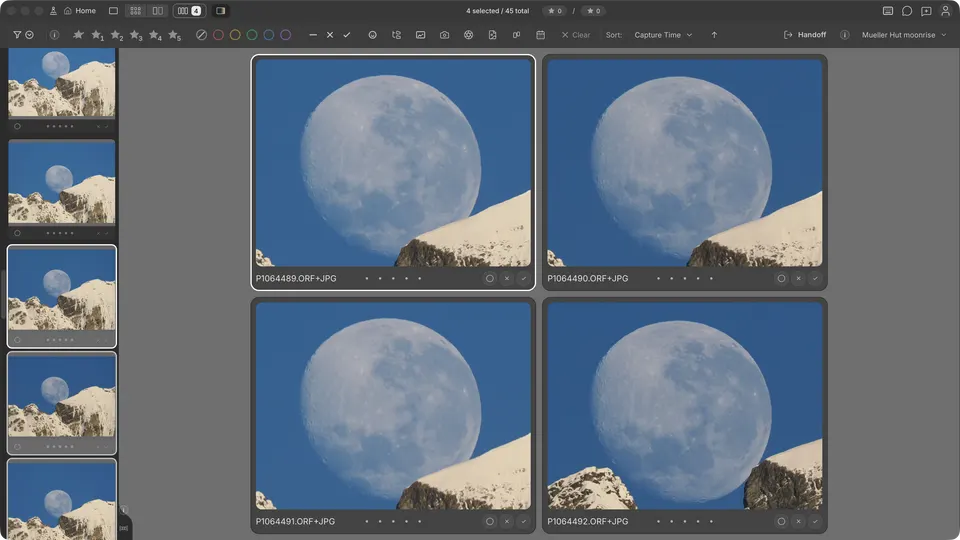
Detail zoom works on the large single-photo preview in Filmstrip and on Grid's full-size preview. Survey and Compare have their own zoom, covered at the end.
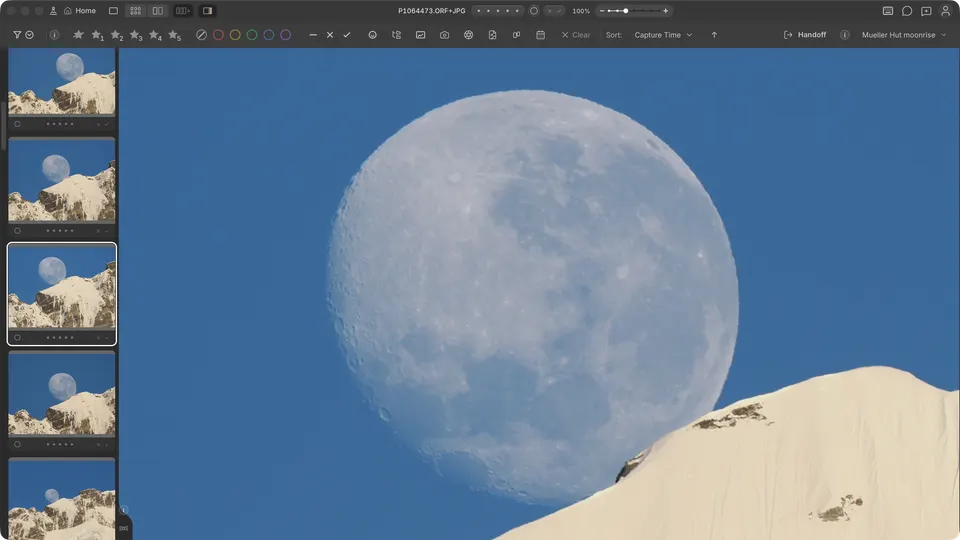
Zoom in and out
- Space — switch between Fit and detail zoom. A photo you zoomed before opens where you left it; otherwise Cullibrate centres a prominent face or the main subject.
- + / - — step through 25%, 50%, 75%, 100%, 200%, 400%, 800%, and 1600%. From Fit, the first step is the first level larger than Fit, so the photo never shrinks when you start. Below 25%, the photo returns to Fit.
- Click the photo to zoom in on the point you clicked. Click again to return to Fit.
- Ctrl + scroll, Cmd + scroll, or a trackpad pinch zooms smoothly around the pointer.
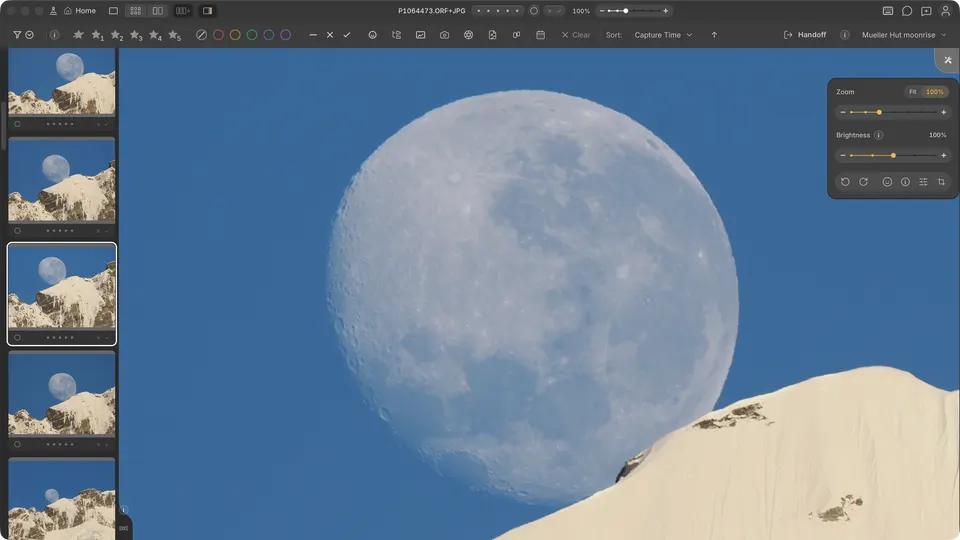
- While zoomed, a zoom control with a blue halo appears in the title bar next to the ratings. Drag it to choose any level, or click the percentage to pick Fit or a level from 25% to 1600%; the ⓘ beside 100% says what that level means. Click × to fit the photo again, as Space does.
What 100% means
At 100%, one pixel of the photo at its full size fills one pixel of your screen. Fit is separate: the whole photo scaled to the window, shown as Fit rather than a percentage.
The percentage describes the photo's full size, not how much detail is on screen yet. When the image Cullibrate has is smaller than the full photo — often the camera's embedded preview inside a RAW file — it is enlarged to that size and can look soft at 100% until a sharper image is available.
Moving around
- Drag the photo to pan. The scroll wheel also pans while zoomed; at Fit, it moves to the previous or next photo.
- Without a face in focus, the arrow keys pan.
- When zoom opens on a face, ← / → step from face to face. ↑ or ↓ leaves face focus, and from then on every arrow pans.
- Shift + arrows pan freely on any zoomed photo, without stopping at faces.
- Option on Mac or Alt on Windows with ← or → goes to the previous or next photo at the same zoom. ↑ and ↓ always pan.
- The first time you press ← or → while zoomed in, a card opens beside the face with the Arrows when zoomed in diagram from General preferences: Next person (or pan), Next photo, and Pan, each with its keys. Swap the keys there if you want the plain arrows to go to the next photo, as in Photo Mechanic and Lightroom, or to pan freely. Click Done or press Return (Enter on Windows) to close it. You can swap them again later in General preferences.
Cullibrate remembers your place
Each zoomed photo keeps its zoom level and position while Cullibrate is open, so you can check a frame, review its neighbours, and come back to the same view. Photos with faces return to the face you last focused. Quitting Cullibrate or opening another collection starts again at Fit.
Which pixels you are looking at
Cullibrate shows the largest image it already has for the photo. For a RAW file that is usually the camera's embedded preview: the same rendering you saw on the back of the camera.
When a RAW file has no usable preview, or its preview has fewer pixels than you need, Cullibrate renders the RAW itself. Zooming in counts: when the camera preview is smaller than the full photo, detail zoom renders the RAW so 100% shows real detail. Colours can shift slightly as the render replaces the preview, and some photos take a moment.
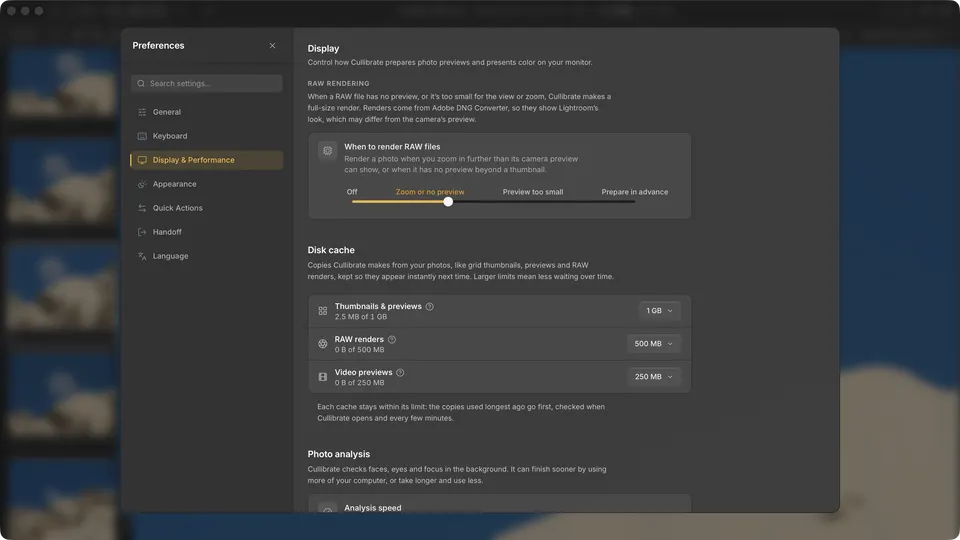
Choose when in Display & Performance preferences under RAW Rendering:
- Off — use the camera's and companion previews only. Zoom enlarges the preview instead.
- Zoom or no preview — render a photo when you zoom in further than its camera preview can show, or when it has no preview beyond a thumbnail. This is the default.
- Preview too small — like Zoom or no preview, but also render the photo you are viewing whenever its preview is too small for the screen, at Fit as well as when you zoom in.
- Prepare in advance — make full-size renders across the collection in the background, so there is no wait when you zoom in. It keeps every render it makes, 4–25 MB each, with no limit: a 1,500-photo collection can use 10 GB or more.
To check one photo as its RAW render, whatever RAW Rendering is set to, press ShiftJ. It takes about a second; press it again or move to the next photo to return. With Preview Edits (J) on, Adobe renders your edits too; CmdShiftJ on Mac / CtrlShiftJ on Windows turns both on at once, and off again.
Disk cache, in the same preferences, keeps RAW renders within 500 MB by default and removes the ones viewed longest ago first, so photos near the one you are viewing stay ready. You can raise the limit to 5 GB. Thumbnails & previews and Video previews have their own limits, 1 GB and 250 MB by default. Cached files are only copies: removing them never touches your photos.
Zoom in Grid
Space with one photo selected opens it full size at Fit. The zoom keys work there, a click zooms to 100% and then toggles between 100% and 200%, and Esc closes it.
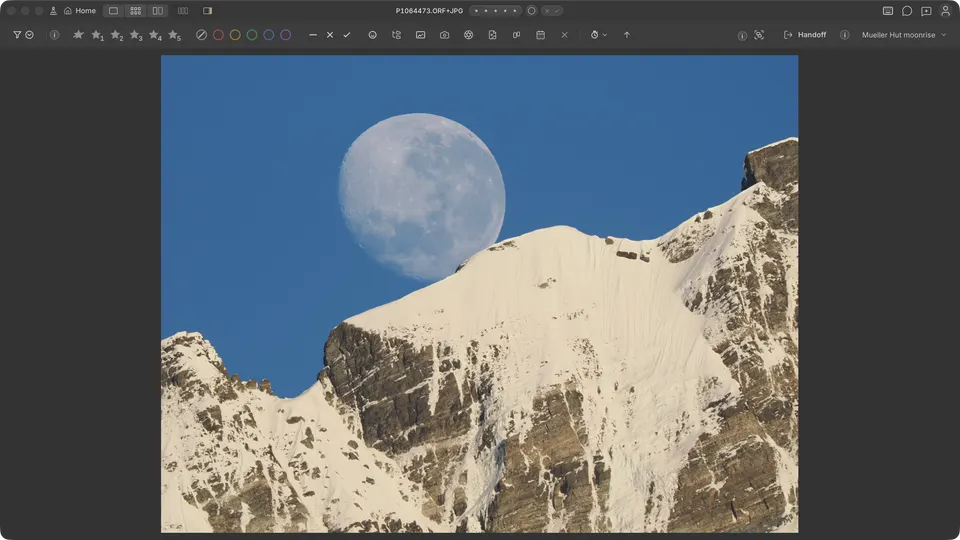
Compare at zoom
Compare can be a useful mode when you want to check the same detail across several photos, such as which frame of a burst is sharpest. Press C to open the photo as Select beside a Candidate, then Space to zoom both to the same place.
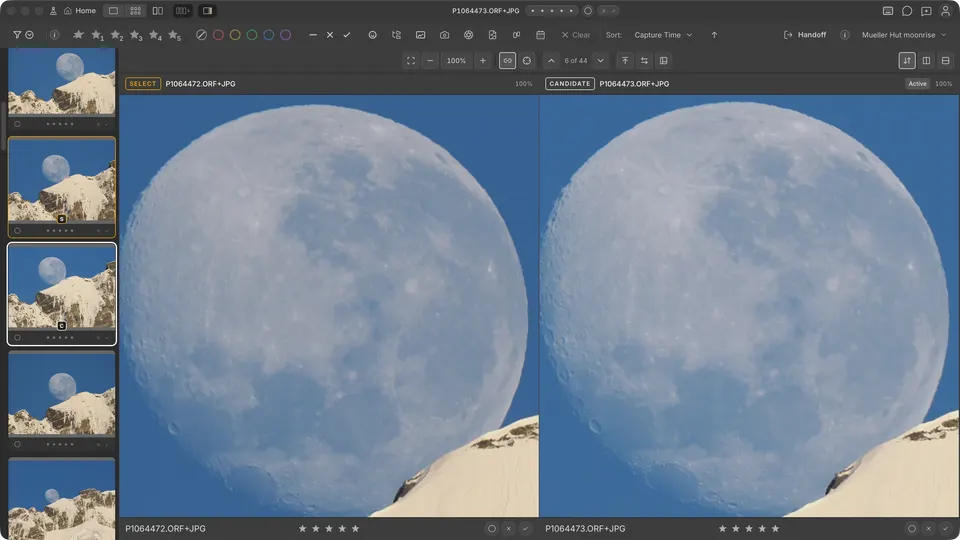
- With Link zoom and position on, zooming or panning one photo moves the other with it.
- Step the Candidate through the burst with the arrow keys. The view stays where it is, so every new frame lands on the same detail.
- ShiftSpace zooms only the active photo. Match active view copies its zoom and position to the other photo once.
For Select, Candidate, and Swap, see Review views.
Zoom in Survey
Survey is available when several photos are selected. Select them in Filmstrip (Loupe) or Grid and press N; with Auto-survey on, Filmstrip opens it by itself. Once inside Survey:
- Point at a photo and scroll to zoom every photo in the survey together. In a survey large enough to scroll, hold Ctrl or Cmd while you scroll.
- Drag to pan every photo together, or double-click a photo to switch between Fit and zoom.
- Hold Option on Mac or Alt on Windows while you scroll or drag to zoom or move only that photo, for example to line up a frame that was framed differently.
- Space frames the detected faces in each photo.