Handoff is where your culled photos leave Cullibrate: into an editor, a catalog, a folder, or a client Gallery. You choose which photos go, add what should happen to them, and click one button.
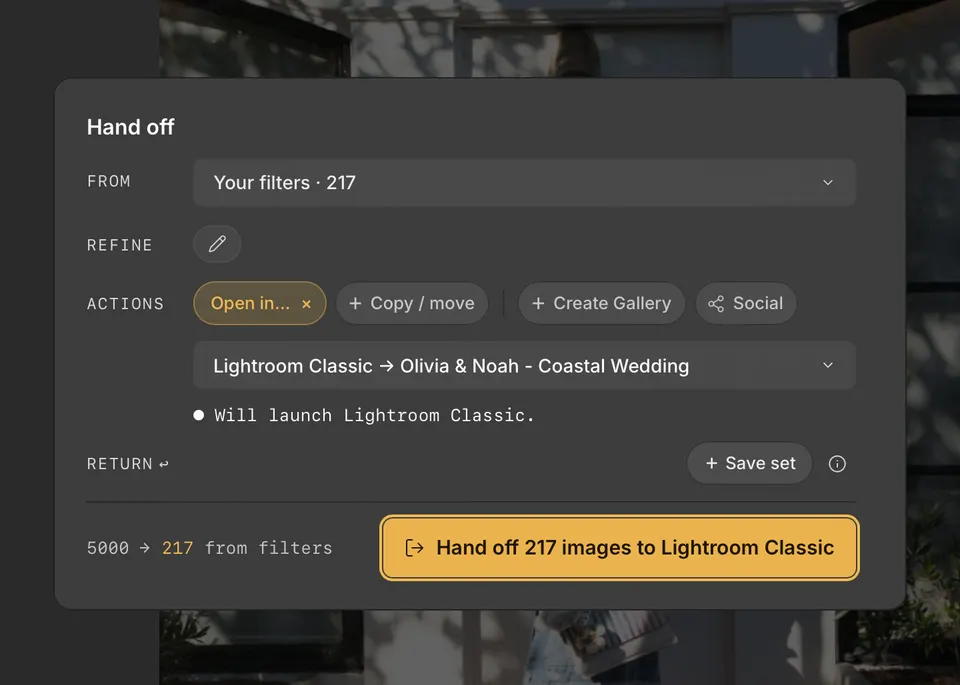
Open Handoff
Press H, or click Handoff in the toolbar. The Handoff card opens over your collection.
From and Refine: which photos
From sets the starting photos: the current photo, your selection, your filters, all photos, or a set you saved earlier. Refine narrows them further, for example to 4 stars and up. See Using Handoff filters.
Actions: what happens to them
- Open in… sends the photos to Lightroom Classic, Lightroom, Photoshop, Photoshop Elements, or Capture One. The same menu ends with Finder (File Explorer on Windows), which shows the photos in their folders.
- Copy / move puts the photos in a folder you choose.
- Create Gallery publishes finished JPEGs as a private client Gallery.
On Mac, Open in… also supports Photomator and Pixelmator Pro, including Pixelmator Pro Creator Studio. Choose the app to open your selects as documents. If it is hidden from the menu, open Handoff preferences and turn on Show in Handoff for that app.
The button at the bottom says exactly what will happen, such as Hand off 217 images to Lightroom Classic or Copy 217 to Selects.
While it runs
A progress view shows each step. You can minimise it and keep culling; minimising does not cancel. Cancel stops the remaining steps, but it never undoes copies, moves, or files an app has already opened.
What travels with your photos
Cullibrate saves ratings, colour labels, and tagged or rejected choices as standard XMP metadata as you cull: in an .xmp sidecar beside RAW files, and inside JPEG and DNG files. Each app reads the parts of XMP it supports. For RAW+JPEG pairs, apps receive the RAW original.