Your photos are already ordinary files in folders on your drive. Cullibrate works with them where they are, with no separate library to export from, and saves ratings and other supported changes as standard XMP metadata. You do not need Lightroom or any other app.
See your photos in Finder or File Explorer
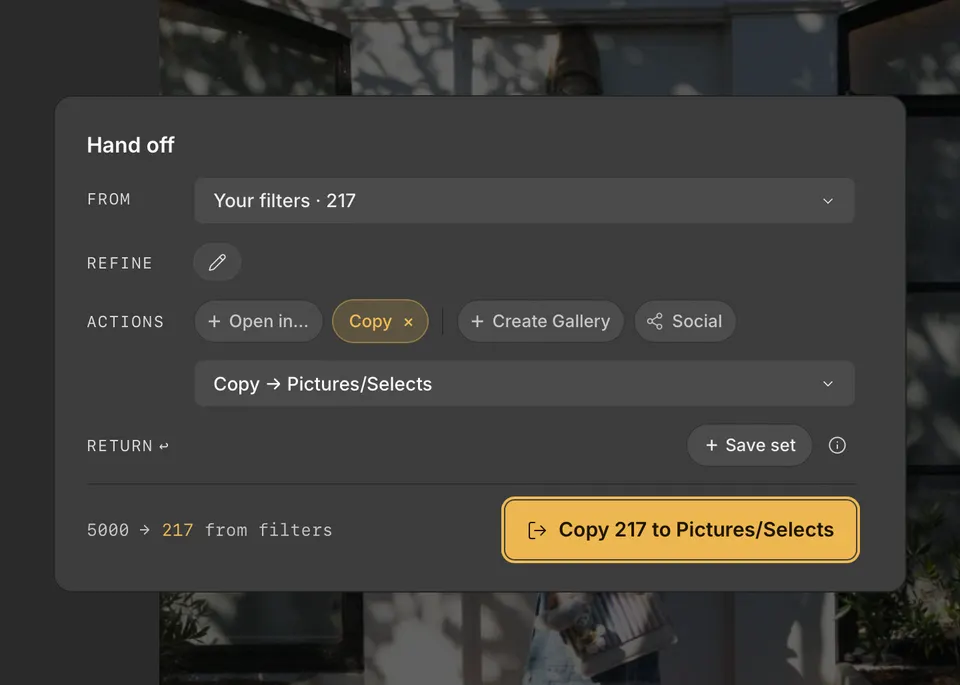
- Press H to open Handoff, and choose the photos with From and Refine.
- Under Actions, click Open in…, then choose Finder (File Explorer on Windows).
- Click Reveal in Finder (Reveal in File Explorer on Windows).
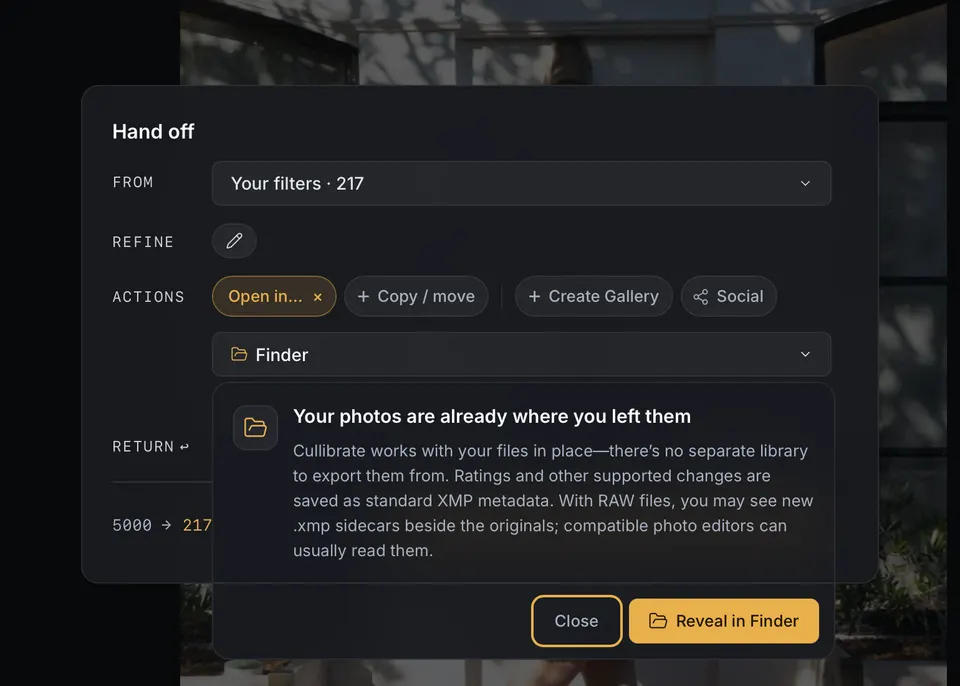
Finder opens with exactly those photos selected. When you are handing off every photo in the collection, Handoff opens its folders instead.
Put just your selects in their own folder
To put just your selects in a folder of their own — for a client, a backup drive, or an editor you import into yourself — add the Copy / move step in Handoff. Copy leaves your originals where they are. Move relocates them, and Cullibrate keeps working with the moved files.
- Press H to open Handoff.
- Choose the photos to include, for example by filtering to your 5-star photos. See Using Handoff filters.
- Under Actions, click Copy / move.
- Choose Copy or Move.
- Type a Folder name and choose where to create it under Inside. To use an existing folder as it is, click use direct destination and choose it under Destination.
- Click Continue.
- Click the button that names the transfer, such as Copy 24 to Selects.
Each photo's files travel together, including its .xmp sidecar when it has one, so your ratings and other supported changes go with them.
If you cannot continue
- Photos with the same names but different content are already in that folder: choose another folder, or create a new one.
- The folder is missing, read-only, or full: Cullibrate shows the reason under the folder. Reconnect or free up the drive, or choose another folder.
- Copy / move is not shown: it is for photos in ordinary folders. For a managed Apple Photos collection, use Export instead.