A Quick Action is a copy or move you set up once and then run with one key: sweeping rejects into a folder beside each original, or copying selects to a delivery folder.
Create a Quick Action
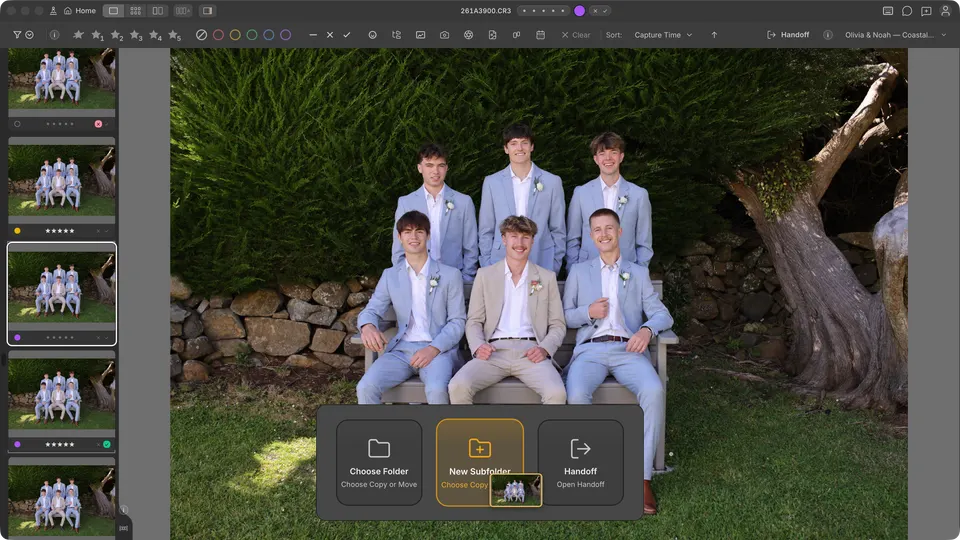
Save a Quick Action as you go by dragging photos from the filmstrip or grid onto a drop target, or create one in Preferences.
Save one by dragging photos
- Drag photos from the filmstrip or grid onto a drop target such as New Subfolder or Choose Folder.
- In the Copy or Move sheet, choose the Action, Where, and Afterwards.
- Tick Save as a Quick Action and set its key.
- Click the button that names the move, such as Move 3 photos to Rejected.
Create one in Preferences
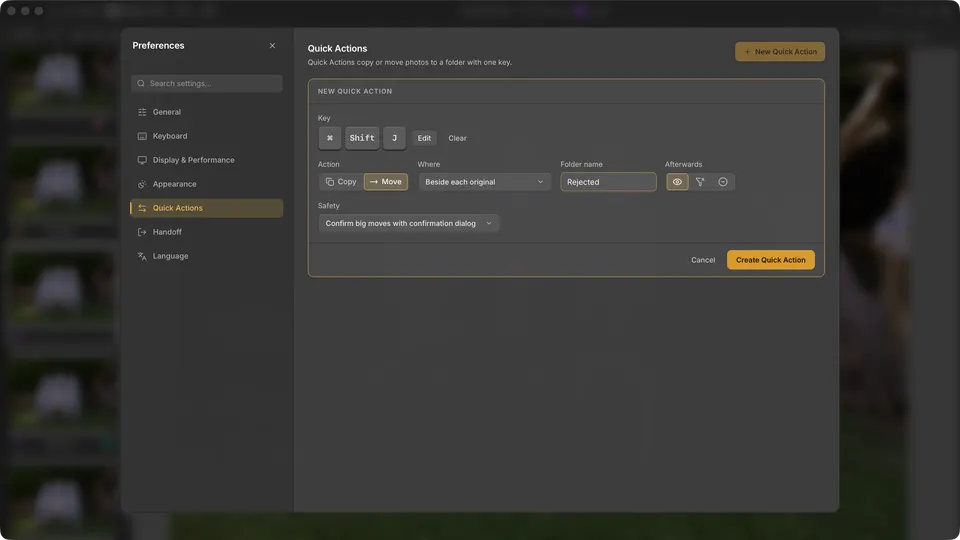
- Open Preferences (Settings on Windows) and choose Quick Actions.
- Click New Quick Action.
- Click Click to set a key, then press the key you want to use.
- Under Action, choose Copy or Move.
- Under Where, choose Beside each original and type a folder name such as Rejected, or choose Fixed folder and pick a folder. Beside each original makes the folder inside each photo's own folder.
- For a Move, choose what happens Afterwards: keep the photos in view, filter them out, or remove them from this file collection.
- Under Safety, choose when a confirmation dialog appears first.
- Click Create Quick Action.
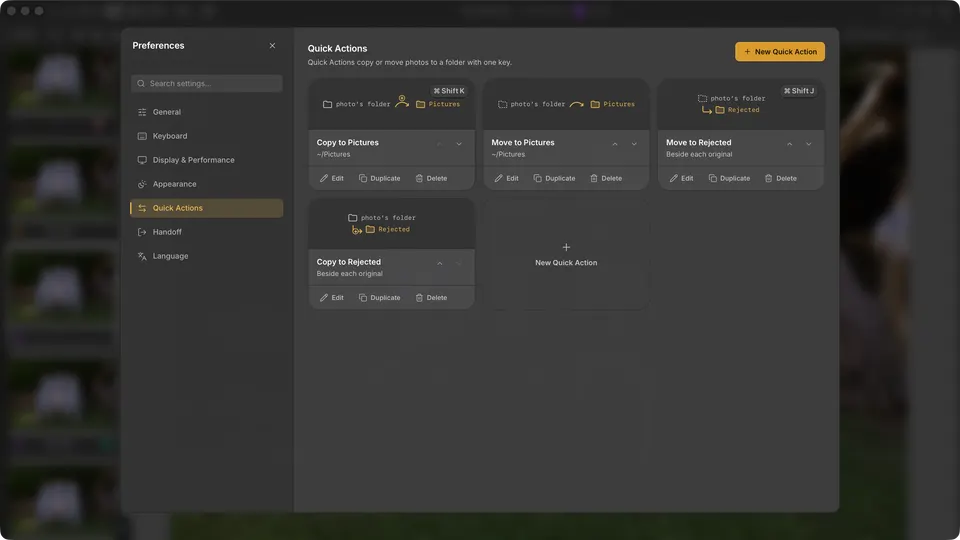
Each Quick Action is named after where it puts photos, such as Move to Rejected or Copy to Pictures. Its card shows the same thing as a picture: a bent arrow into a folder beside each original, or an arching arrow across to a fixed folder. A Move dashes the folder the photos leave, and a Copy adds a plus to the arrow.
Run a Quick Action
- Press its key. It applies to your selection or the active photo, and to the highlighted photo in Survey. Unlike ratings, it never extends to a whole group.
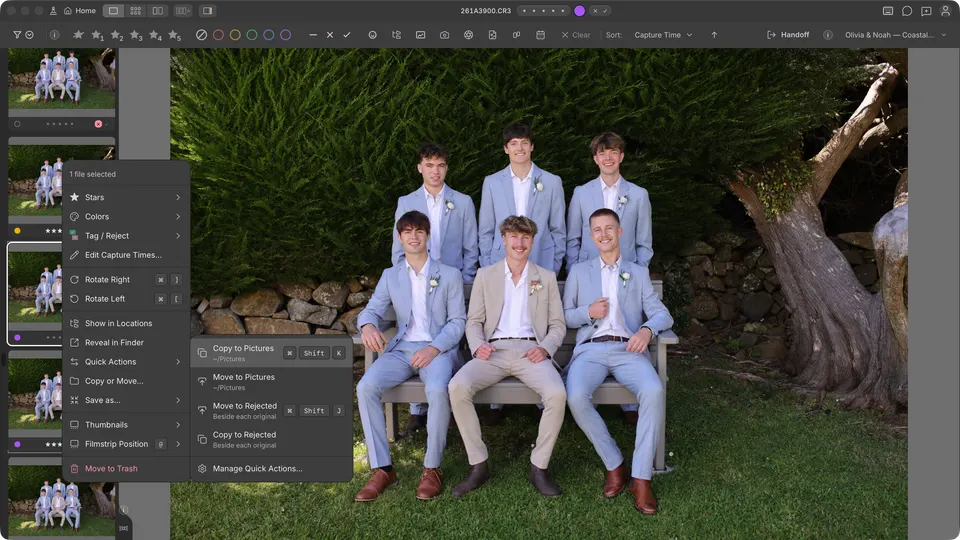
- Right-click a photo or a selection and open the Quick Actions submenu.
- Right-click and choose Copy or Move…, or drag photos onto a drop target such as New Subfolder. The Copy or Move sheet lists your Quick Actions under Use a Quick Action; pick one and it fills in the rest.
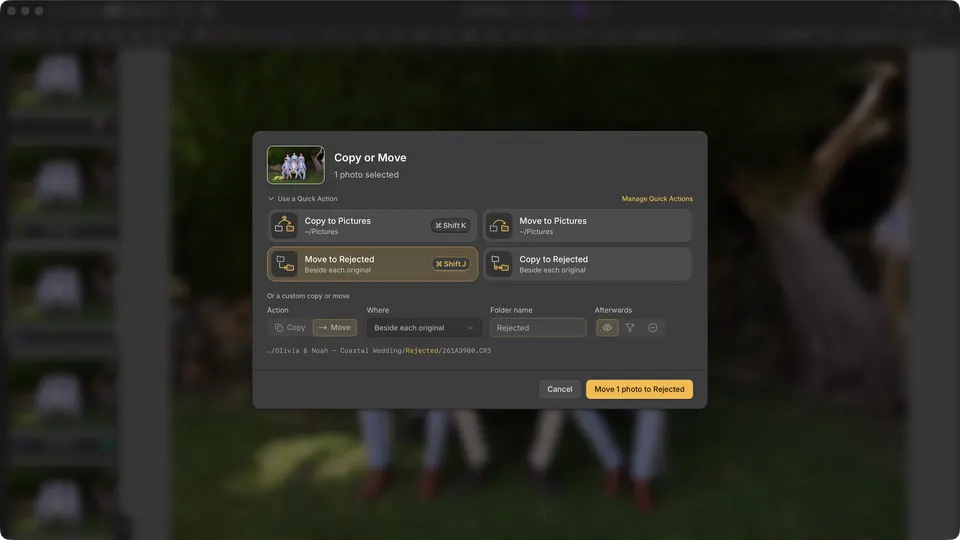
Where
- Beside each original — makes the named folder inside each photo's own folder, so photos from different folders stay apart.
- Fixed folder — puts every photo in the one folder you pick.
- A folder per file collection — asks each file collection for its own folder the first time you use the Quick Action there, so a later file collection never lands in an older one's folder.
Safety
- Confirm big moves with confirmation dialog — runs at once, except a big move, which opens the Copy or Move sheet so you can check it first.
- Always show confirmation dialog — the Copy or Move sheet opens every time before anything runs.
- Run straight away — runs at once whenever the folder is available.
After a Move
- Keep them in view — the photos stay in the file collection and now read from their new folder.
- Filter them out — the photos stay in the file collection but their new folder is hidden from the current view. Clear Filters shows them again.
- Remove them from this file collection — the moved photos leave this file collection. The files are moved, not deleted.
Edit, reorder, or delete
In Preferences → Quick Actions, each card has Edit, Duplicate, and Delete, and arrows to change the order the menu lists them in. You can save up to 24. Deleting a Quick Action only removes the Quick Action: no photos or folders change.
Undo
Use Edit → Undo, or Undo on the completion message. Cullibrate may ask you to confirm first, for example after a move between drives. Undo also reverses Remove them from this file collection and Filter them out; undoing a Copy removes the copies and leaves the originals. After a restart, reverse a transfer from File Activity.
Set up Delete with a Rejects folder
The first time you press Delete, Cullibrate asks where photos you don't want should end up: out of this file collection, a Rejects folder, or the Trash (the Recycle Bin on Windows). Each choice shows its key, and Delete goes to the one you pick.
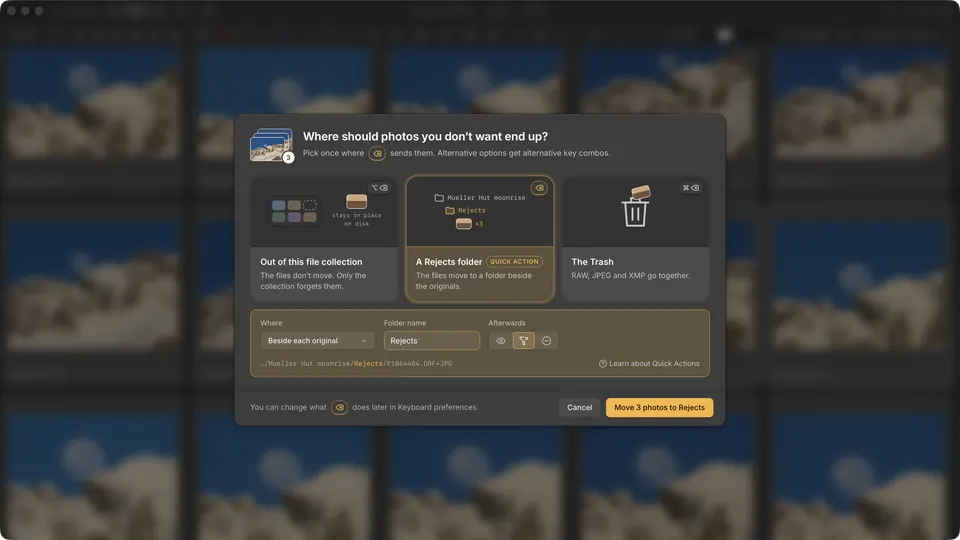
- Select the photos you don't want and press Delete.
- Choose A Rejects folder.
- Under Where, choose Beside each original and name the folder, or choose Fixed folder and pick one.
- Under Afterwards, choose whether to keep the photos in view, filter them out, or remove them from this file collection.
- Click the Move button.
Cullibrate saves your choice as a Quick Action, gives it the Delete key, and moves the photos straight away. Removing from the file collection moves to Option+Delete on Mac or Alt+Delete on Windows, and Command+Delete on Mac or Ctrl+Delete on Windows still moves photos to the Trash or Recycle Bin. If you pick the Trash or Recycle Bin instead, Delete moves photos there and Command+Delete or Ctrl+Delete removes from the file collection.
Quick Action keys
- Quick Action shortcuts stay the same in every keyboard profile.
- Two Quick Actions cannot share a key, and the rating, colour, and tag keys are reserved.
- If a Quick Action shares a key with another remappable command, the Quick Action wins in the photo workspace.