Grouping collects related photos into stacks in Grid and Filmstrip. It keeps sequences together while every photo remains available for inspection and rating.
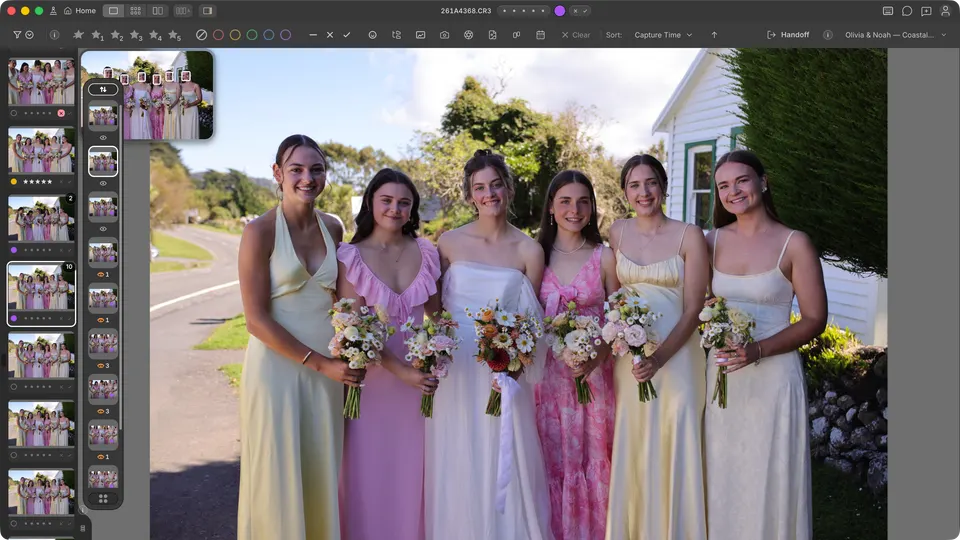
Show and inspect stacks
- U — show or hide grouping stacks.
- S — expand or collapse the active stack while you are in Grid.
- An expanded stack exposes each member. A collapsed stack keeps the sequence compact without removing its members from the collection.
Choose what a rating affects
The Rate whole group setting in General preferences decides whether a star, colour, tag, or reject action in Filmstrip affects the selected photo or every visible photo in its group while stacks are shown. In Grid, ratings follow your selection. Hold Option on Mac or Alt on Windows while applying the rating to reverse that scope for one action, or to rate whole groups in Grid.
Choose how auto-advance crosses groups
When Auto-advance is on, use Auto-advance to next group in General preferences to choose the cadence. Photo by photo, the default, visits the next visible member within the group, then the next stack or photo. Group by group skips the remaining members of the active group and moves straight to the next displayed slot. Caps Lock follows the same choice while it enables auto-advance.
If one action rates the whole group, auto-advance moves beyond that group under either cadence because every target of that action was just rated. Ratings from an earlier pass do not make Cullibrate skip photos.