The Faces panel shows the detected faces for the active photo beside its full frame. Use it during ordinary Grid or Filmstrip review when expressions are the deciding detail.
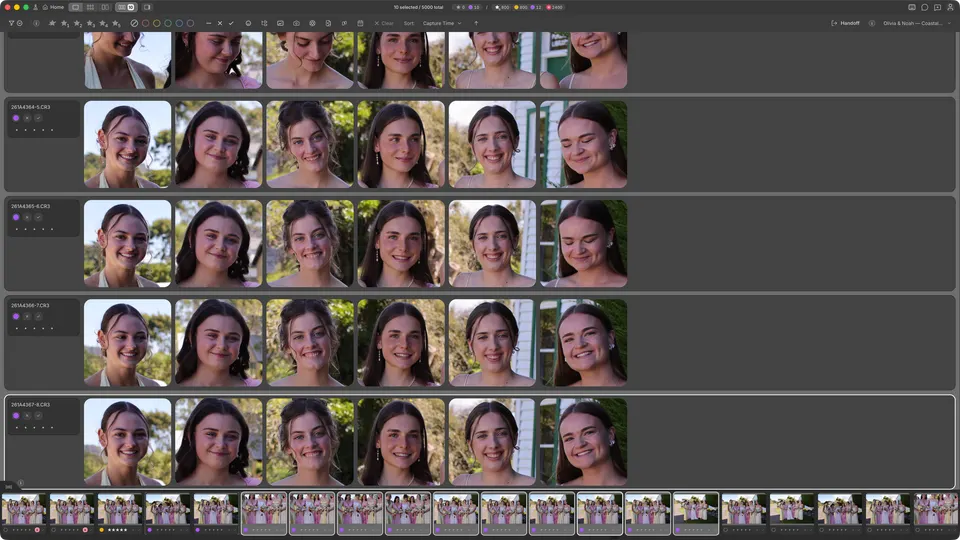
Open the Faces panel
- / — open or close the panel.
- Shift/ — make the Faces panel full size or return it to the side.
- Option/ on Mac / Alt/ on Windows — float or dock the panel while you are in Grid.
Move into Face Survey
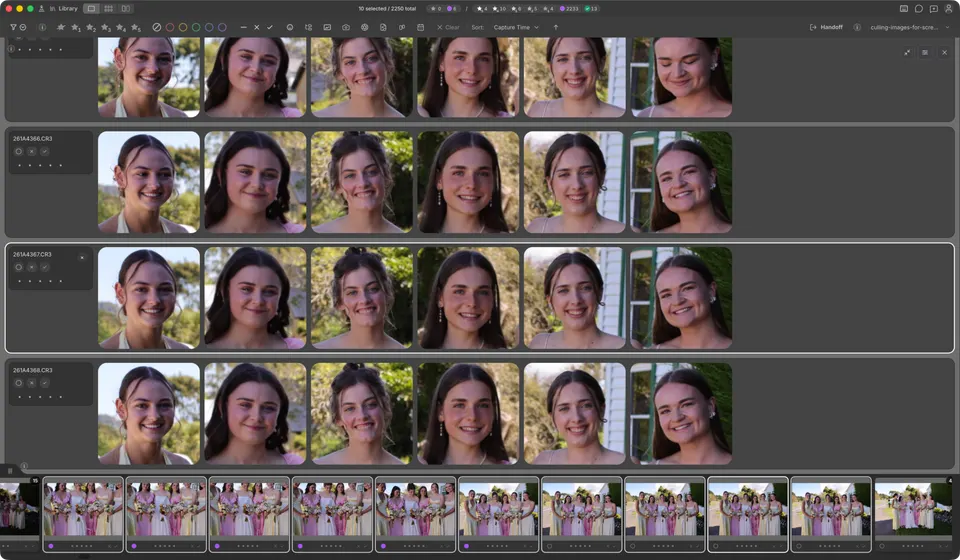
- Start with a photo that is a member of a group or select two or more photos manually.
- Press Cmd/ on Mac / Ctrl/ on Windows to open Face Survey for the current group or your manual selection.
- Press the same shortcut again to leave Face Survey.
Alternatively, open Survey first:
- Press N to enter Survey for the current group or your manual selection.
- Press / to replace the whole-photo layout with aligned face crops from the selected photos.
- Press / again for the whole-photo Survey, or N to leave Survey.
Use the side panel to inspect the faces in one photo. Use Face Survey to compare each face across several photos. Ratings and tags still apply through the normal controls.