A Gallery is a private web page Cullibrate hosts for you. Create it straight from Handoff, send your client the link, and they can view, heart, comment on and download their photos.
What goes into the Gallery
Galleries accept JPEG and RAW photos. Each photo goes like this:
| Your photo | What your client gets |
|---|---|
| JPEG | The JPEG itself. |
| RAW with Lightroom edits in its XMP | Your edits applied, at full size, made by Adobe DNG Converter. |
| RAW+JPEG or RAW+HEIF pair | The JPEG or HEIF. |
| RAW on its own | What Cullibrate shows at 100% zoom: the full-size camera preview, or a full-size render. |
- Up to 2,500 photos per Gallery.
- Photos over 100 megapixels are scaled down to fit.
- A JPEG file can be up to 50 MB.
- Cullibrate prepares metadata-free sRGB copies on this device. Your originals are never overwritten.
Create the Gallery
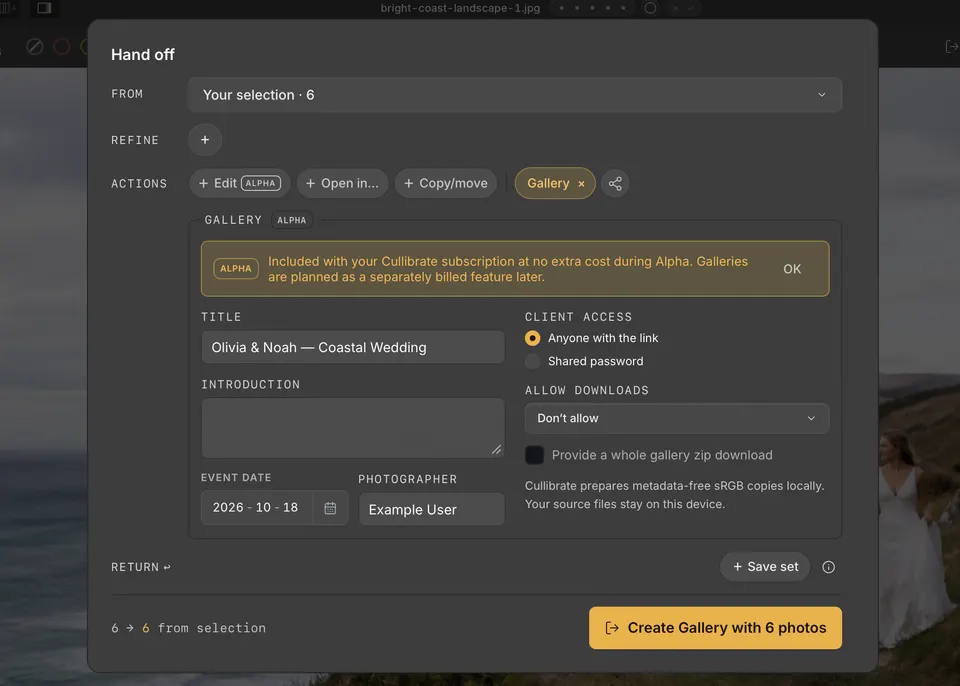
- Press H, or click Handoff in the toolbar, to open the Handoff checkout.
- Choose the photos with From and Refine, exactly as for any other handoff.
- Under Actions, click Gallery. The Gallery box appears with your collection name as the title.
- Set the title, an introduction, the event date, and the photographer name your client will see.
- Choose who can open it: anyone with the link, or a shared password you give your client.
- Choose downloads: off, web size, or the original JPEGs, and whether to offer a whole-gallery zip.
- Click the button at the bottom, such as Create Gallery with 48 photos.
When the upload finishes, the checkout offers Open client view and Manage Gallery. Manage Gallery opens the website, where you can change access, downloads and details later.
What your client sees
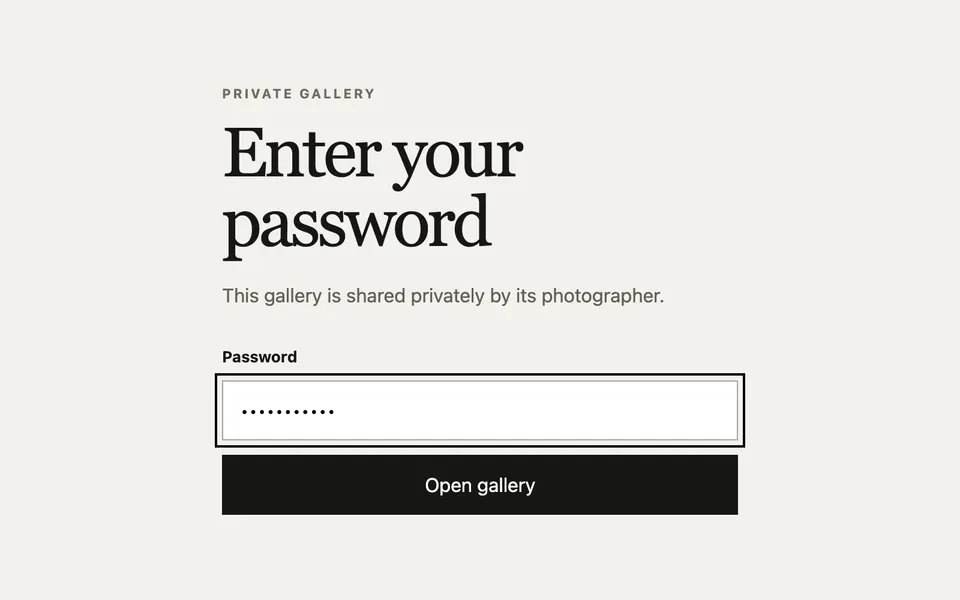
With a shared password, your client enters it first.
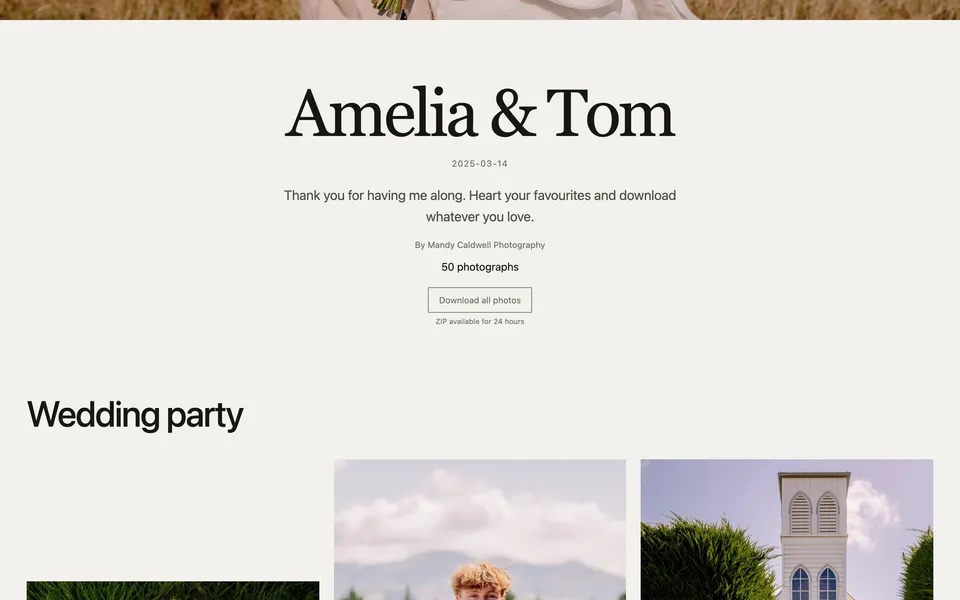
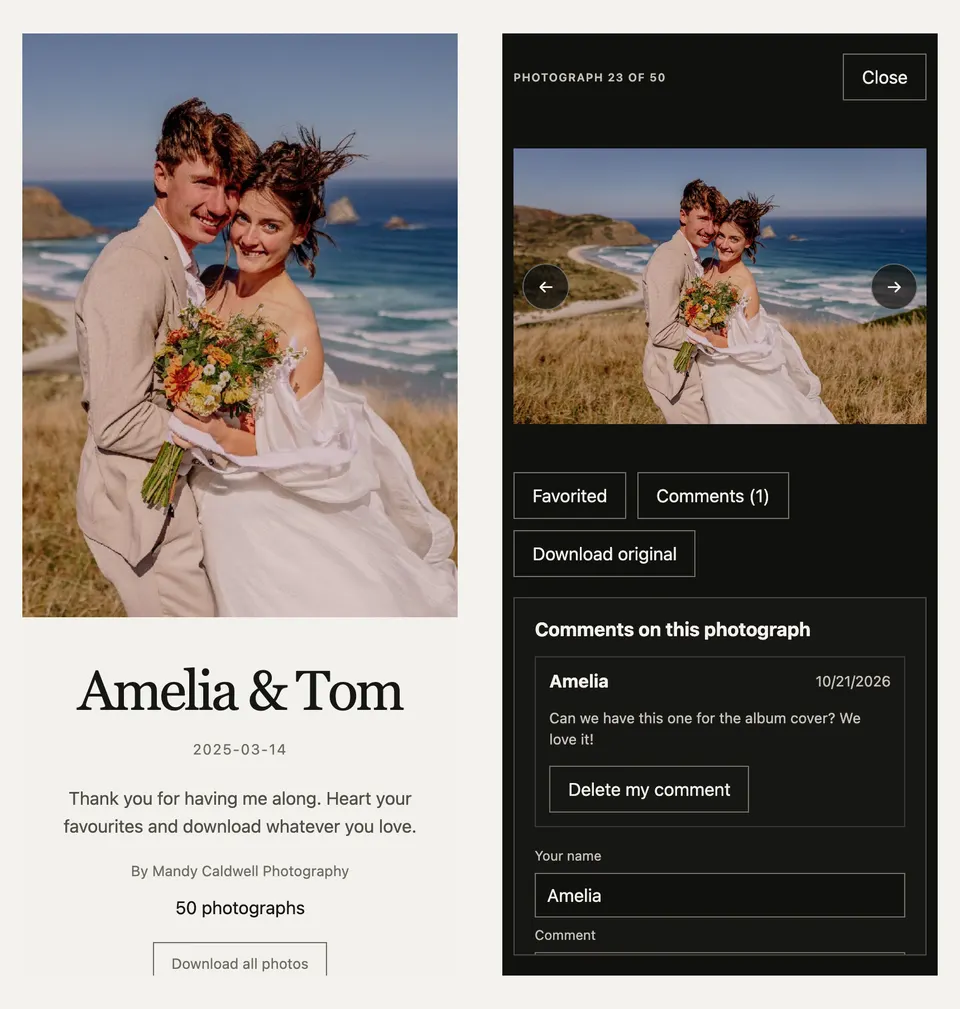
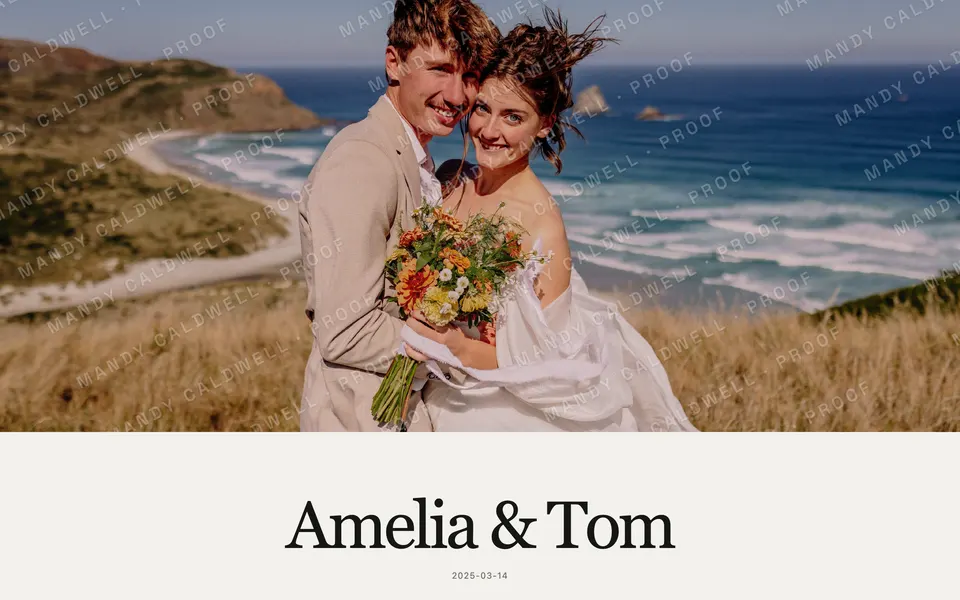
The Gallery opens on your cover photograph, title and event date.

Below sit your introduction and name. If you allowed it, Download all photos prepares a zip in the background; your client can leave and come back, and it stays available for 24 hours.
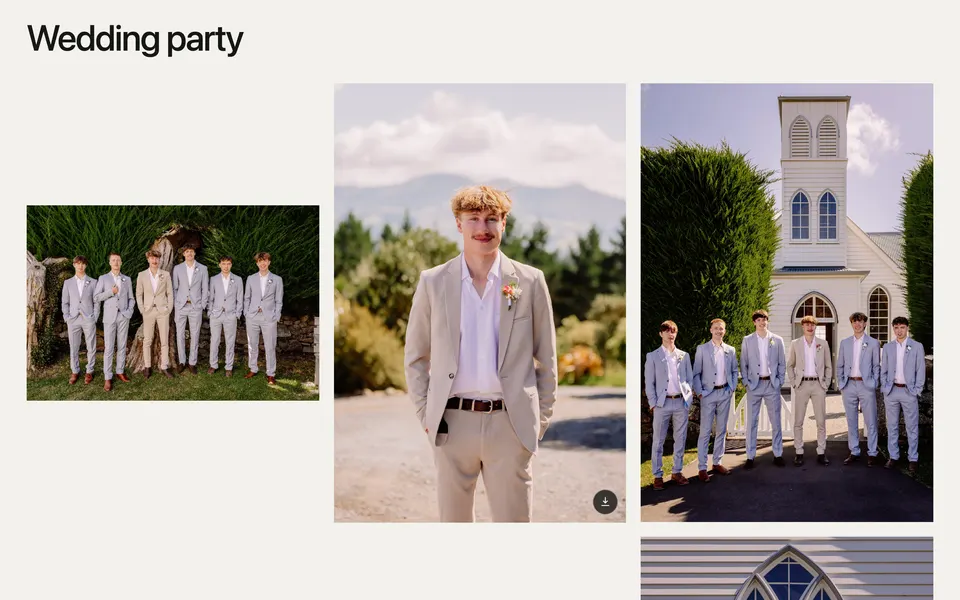
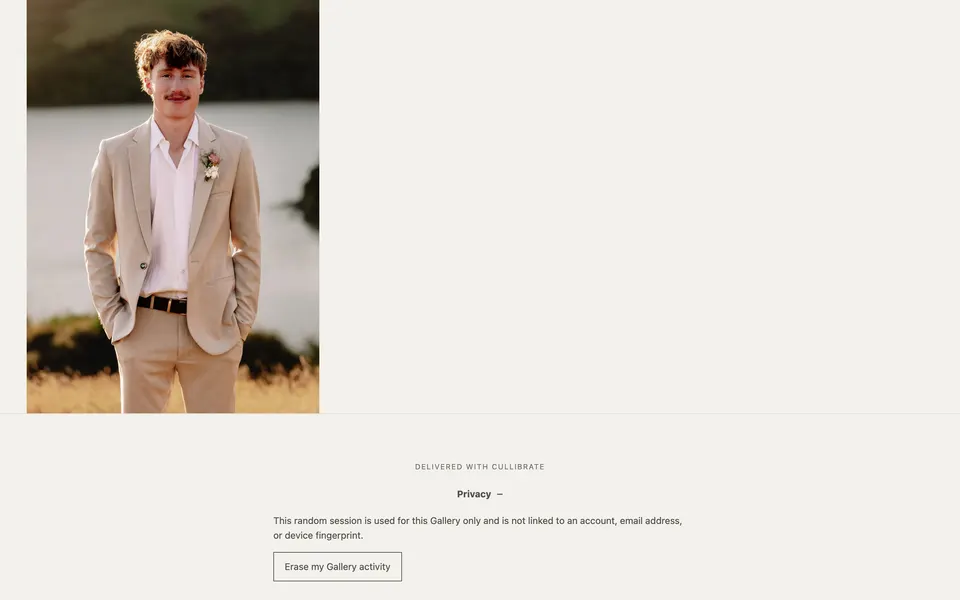
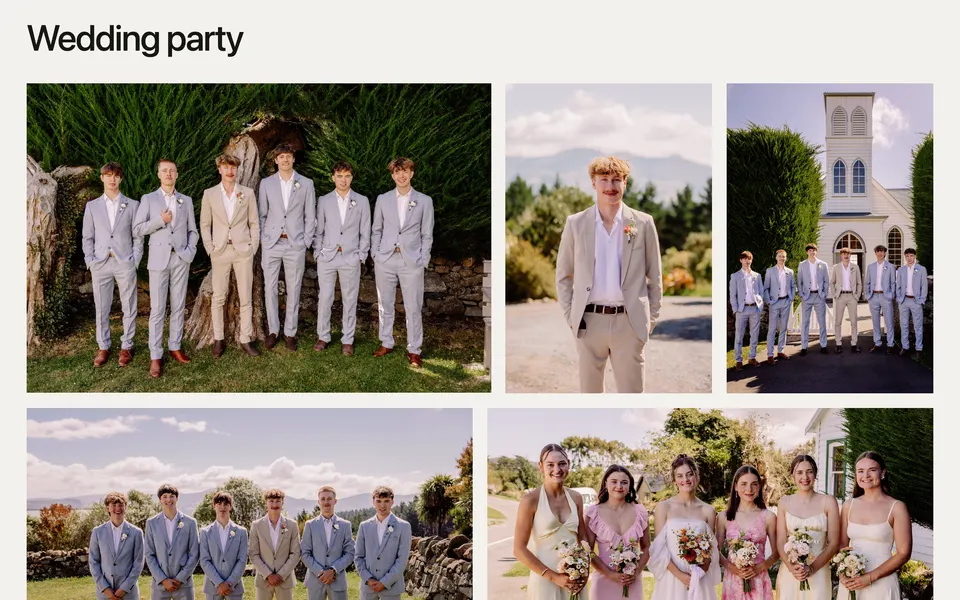
Photos sit under your section headings, each with its own download button.
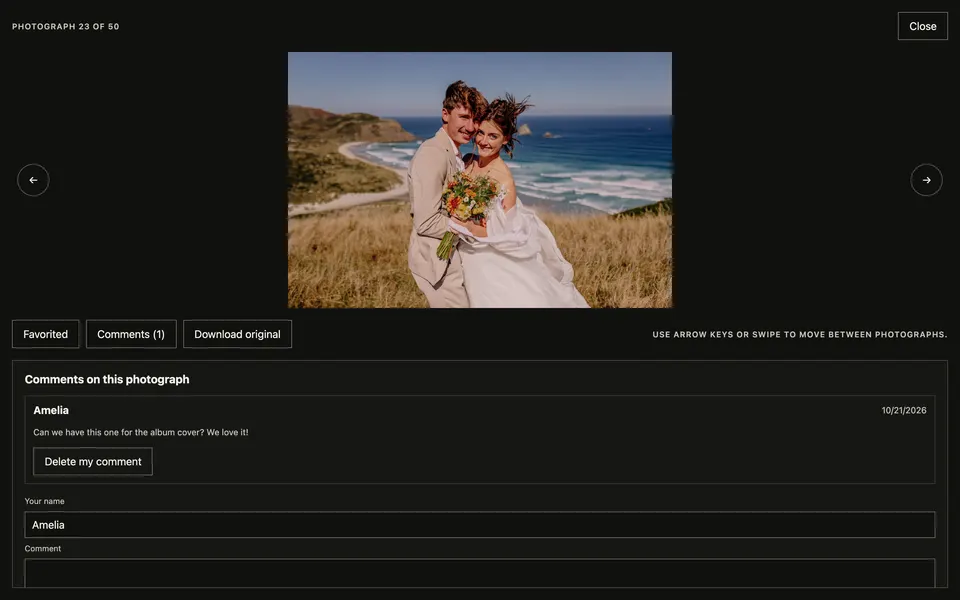
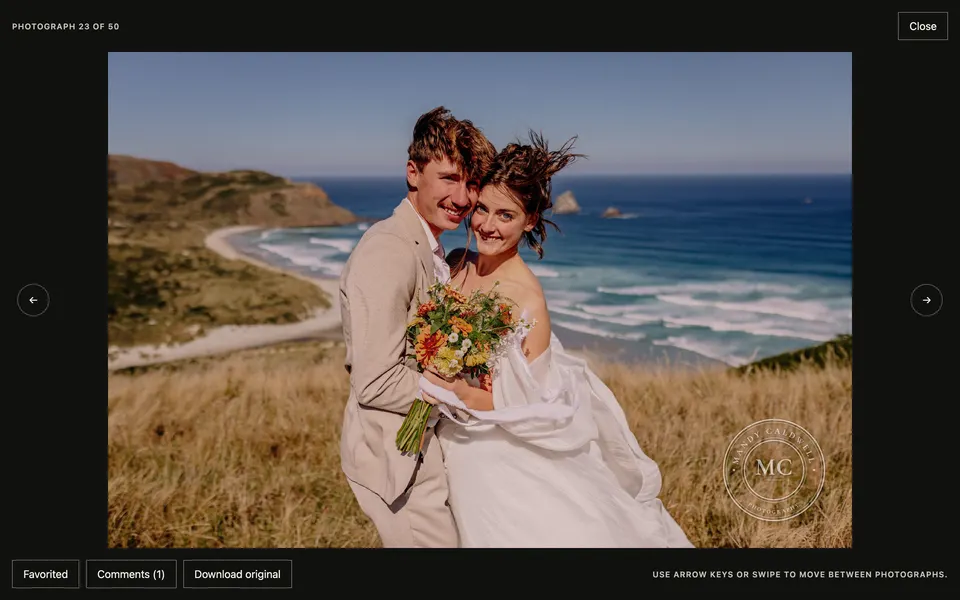
Clicking a photo opens the viewer. In the viewer your client can:
- Move between photos with the arrow keys or by swiping.
- Heart a photo with Favorite.
- Leave you a note with Comments.
- Save the photo with Download original.
It all works the same on a phone.
Make it yours
In Manage Gallery on the website, Client presentation changes how the Gallery looks. Saved changes go live straight away.
| Setting | Options |
|---|---|
| Cover photograph | Any photo in the Gallery. |
| Layout | Grid keeps each photo at its own shape; Editorial sets photos in full-width rows. |
| Styling | Light or Dark. |
| Spacing | Tight, Regular or Generous. |
| Watermark | Your logo, signature or a stamp over the photos clients view. See below. |
| Sections and photo order | Headings and the order photos appear in. |

Add a watermark
Under Watermark in Client presentation, choose a type. The preview shows it on a sample photo as you go, and Save presentation puts it on the live Gallery.
| Type | What it is |
|---|---|
| Upload | Your own logo or signature, as a PNG or SVG up to 2 MB. Empty edges are trimmed for you. |
| Signature | Your name in one of four handwritten or serif styles. |
| Stamp | A round stamp with your name, tagline, location, year and initials, in eight designs. |
| Centred | Spaced capitals across the middle of the photo. |
| Repeated | Faint diagonal repeats across the whole photo, for proofs. |
- Choose white or black, or keep an uploaded logo in its own colours.
- Place it in a corner or the centre, and set its size and strength.
- Turn on Soft shadow so it stays readable on bright photos.
- Choose where it shows: the cover, grid thumbnails and the full-screen viewer. On thumbnails a stamp shrinks to its initials.
Combining a Gallery with other steps
A Gallery can run in the same handoff as Copy/move, for example copying the finished JPEGs to a delivery drive and publishing them in one go. It cannot run with Open in…: turning one on turns the other off.
If the upload is interrupted
Reopen Handoff on the same collection. Interrupted uploads are listed at the top of the Gallery box: choose Resume to carry on from the last verified progress, or create a new Gallery instead.