Capture times put a file collection in order. If a clock was wrong — a dead battery, a body still on home time, or two cameras that drifted apart — fix it after import or as part of the import. Changes save to your catalog and to XMP, and a collection sorted by capture time re-sorts straight away.
Open the editor
- Choose Edit → Edit Capture Times…
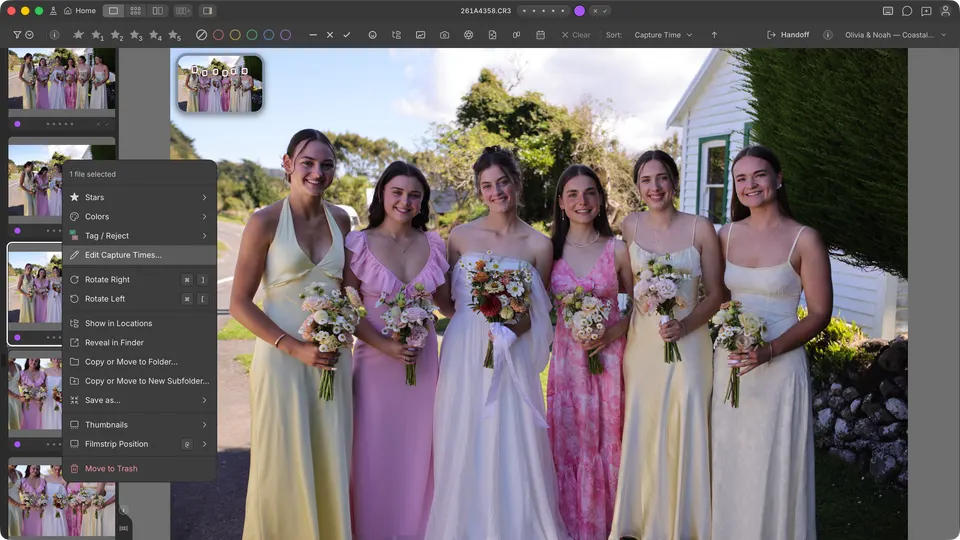
- Right-click a photo and choose Edit Capture Times…
- In the Info panel, hover Captured and click the pencil.
Choose which photos
The Photos row at the top of the dialog sets the scope: Current, Group or Selected, Camera, and All. Current follows the reference photo on the left; use its arrows to choose a different one. All means every photo that passes your current filters.
Camera lists the bodies in the file collection by model and serial number, so two cameras of the same model can be fixed separately.
To see which body took each photo, choose Camera in the sort menu: photos group by model and then serial number, in capture order within each body.
Shift by: move times by an amount
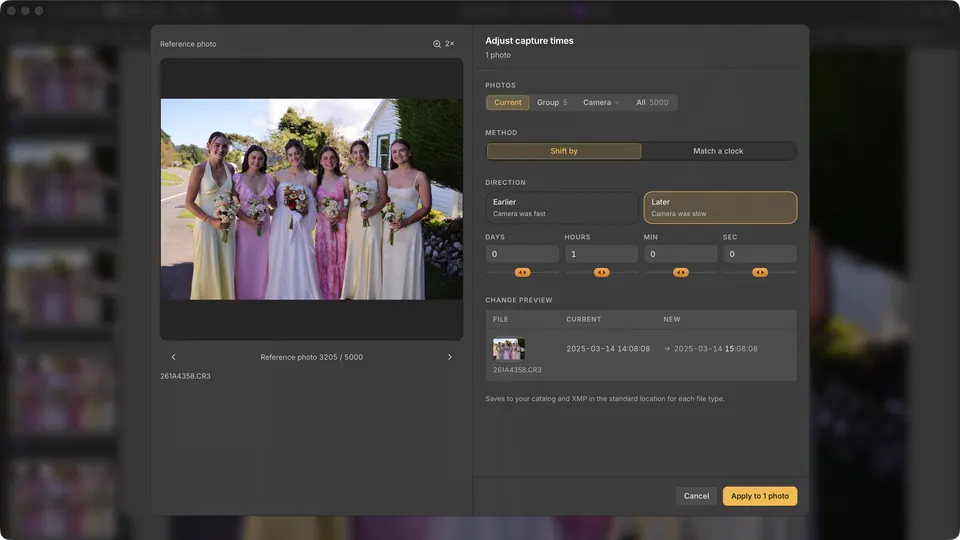
- Choose Shift by.
- Choose Earlier if the camera was fast, or Later if it was slow.
- Enter days, hours, minutes, and seconds, or drag the slider under a field. The further you drag, the faster it changes.
- Check the Change preview, then click Apply.
Photos with no capture time are skipped; the preview offers Repair for them.
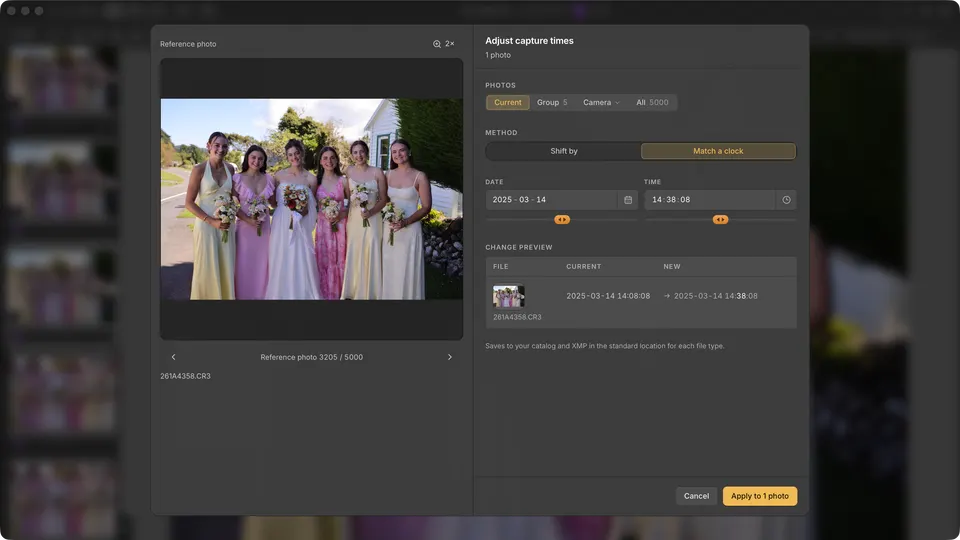
Match a clock: line up to a reference photo
Type the date and time the reference photo should have. Use 2× to read a clock in the frame. Every photo in scope moves by the same difference, keeping its order and spacing.
Repair: photos with no capture time
When some photos have no capture time, the Change preview says so and offers Repair. Choose Set each to set the first photo and adjust the rest from it, or Set all to a single time. Repair only fills gaps; it never overwrites a capture time that exists.
During import
In the import builder, add a Capture time adjustment to correct each camera as part of the import. Adjustments update your working photos and catalog; filenames, folders, and backup copies stay as imported.
Where changes are saved
- Your catalog, immediately. Sorting and date filters update without reimporting.
- XMP in the standard place for each file type: a sidecar next to RAW files, and inside standalone JPEG and DNG files.
- Proprietary RAW image data is never changed.