With Edit on, Cullibrate writes your Colorbration's develop settings into the photos' XMP before it hands them off. Lightroom Classic reads them as it imports, so the photos arrive already edited.
Hand off with Edit
- Open Handoff and choose Edit. No Colorbration yet? Choose Set up. See Create a Colorbration.
- Under Edit with, choose a Colorbration.
- Choose Open in… → Lightroom Classic, then hand off.
- In Lightroom's Import, set Develop Settings to None, then import.
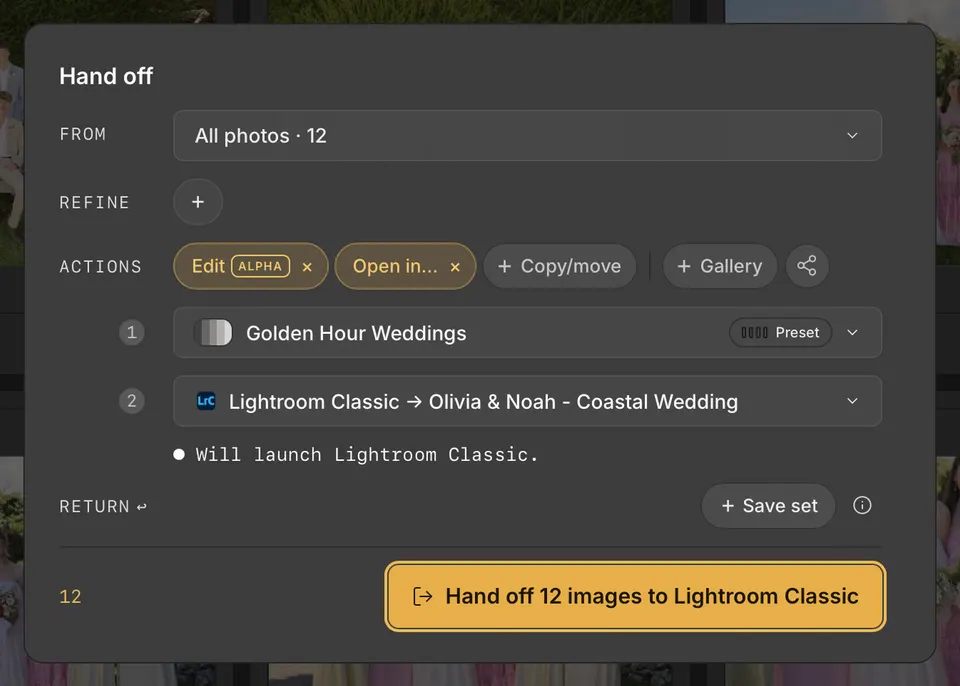
Handoff shows how many photos it edited. Photos it couldn't edit are handed off without edits.
Choose a Colorbration when you import
You can also choose a Colorbration as you import, so you see your look while you cull.
- In Copy & Cull or Open, under Refine, choose Colorbration and pick one.
- Its box says what happens. By default, it is written into each RAW photo's XMP as the import finishes. If some XMPs already have edits, the box asks whether to override them: leave it ticked to replace those edits, or untick it to keep them. Turn its switch off to only preview it until Handoff.
- While you cull, click Preview Edits in the title bar to choose what it shows: existing edits or a Colorbration. Press J to turn it on or off.
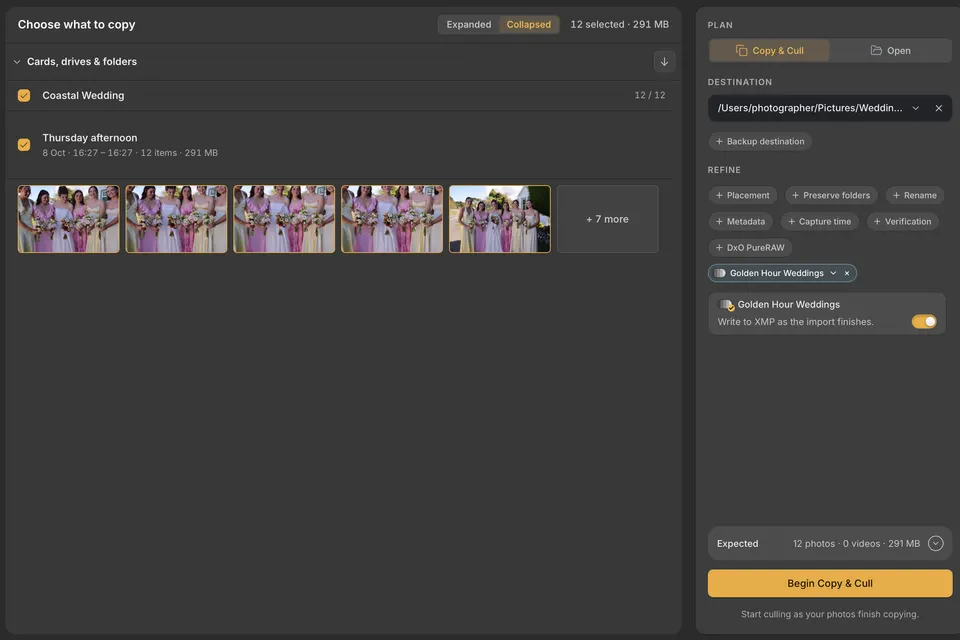
Handoff starts with the same Colorbration. If the import already wrote it and nothing has changed since, Handoff doesn't write it again. If the Colorbration has been updated, Handoff reapplies the new version. Either way, the photos teach the Colorbration as you finish them in Lightroom Classic.
Which edits it applies
A new Colorbration applies your preset. Once it has a trained version, Handoff applies that version, which adjusts each photo to your style. Cullibrate tells you the first time.
- To use the original preset or keep using one trained version, open Manage and choose it under Choose a version.
Which photos get edits
- RAW photos: the edits go into the .xmp sidecar beside the RAW file. The RAW file itself never changes.
- JPEG, HEIC, TIFF and DNG photos: only copies Handoff makes, for example with Copy / move, get edits. Originals never change.
- Photos that already have edits get the Colorbration's values instead. Before it starts, Handoff says when edits will be overwritten.
- RAW photos already in the Lightroom Classic catalog still get XMP edits. They are excluded from the new-photo import.
- Some white balance adjustments can't be applied yet. Handoff says when it left them out.
- Edit works with Lightroom Classic. It isn't available with other editors yet.
Turn off or cancel
- To hand off without editing, remove the Edit step in Handoff.
- Cancelling a handoff keeps the edits already written to XMP. Handoff says how many.
If something isn't working
| You see | What to do |
|---|---|
| Install … in Lightroom Classic. | The preset was removed or renamed. Install it again, then hand off again. |
| Keep one copy of … in Lightroom Classic. | Remove the duplicate preset, then hand off again. |
| … changed in Lightroom Classic. | Choose Use the updated preset to hand off with your changes. |
| Lightroom Classic is still loading presets. | Wait a moment, then try again. |
| Edit needs Lightroom Classic, which Cullibrate can't find. | Install Lightroom Classic, or remove the Edit step. |
| This Colorbration isn't ready on this computer. | Try again in a few minutes, or choose another Colorbration. |
| Edit works on up to 20,000 photos at a time. | Hand off in smaller sets. |